
Minimal Debian Linux Installation
This article documents the process of installing Debian 12 in VMware, including downloading the minimal network image, skipping the tedious apt configuration, manually configuring DNS and software sources, installing the SSH service, and connecting remotely via PowerShell. Finally, the author uses a one-click mirror-switching script to update the system and installs some common tools to prepare for future use.
Installing Debian 12 on VMware
Download the image
<img src="/api/file/75148698f60e4b05a49ba82d421b720a_0.7.jpg" alt="image-20240813230112785" style="zoom:50%;" />I chose the smallest network installation image here, which takes less time to download. It’s only about 600 MB in total.
Skip installing additional content
The network is configured at the beginning of the installation, so keep the network connection active at this point.
Then disconnect from the network during the APT configuration stage. This takes a long time—one or two hours.
When you reach APT configuration, go back directly, then install the GRUB bootloader. (You’ll configure APT manually afterward.)
Restart after installation
At this point, enabling the network adapter still won’t let you access the internet, though you can ping IP addresses.
ping baidu.comfails to resolve the domain because the VMware gateway’s DNS is having problems. Configure it manually here.
Configure DNS
vi /etc/resolv.confChange the
nameserverIP to114.114.114.114.
Configure a temporary APT source
We still need to change some more settings, but VMware doesn’t allow pasting. Next, after configuring APT, install SSH.
# 手敲
echo "deb http://mirrors.ustc.edu.cn/debian bookworm main contrib non-free non-free-firmware" > /etc/apt/source.list
apt update
Install SSH
# ssh 用来远程登陆,vim用来修改ssh的配置,curl一会用自动换源脚本会用到
apt install -y ssh vim curl
# 安装完成后修改ssh配置,允许root用户使用密码登录,虚拟机就不考虑安全性了
# 如果是服务器,需要换默认ssh端口防止被扫描,后续再关闭密码登录,使用公私钥对进行登录,安全性拉满。
vim /etc/ssh/sshd_config
# 修改完成重启 ssh服务
systemctl restart sshd
Connect to Linux
You can connect using various tools. Here, I’ll connect directly using PowerShell. If you don’t have the ssh command, you may need to install OpenSSH.
ssh [email protected]
[email protected]'s password:
Linux debian 6.1.0-23-amd64 #1 SMP PREEMPT_DYNAMIC Debian 6.1.99-1 (2024-07-15) x86_64

The programs included with the Debian GNU/Linux system are free software;
the exact distribution terms for each program are described in the
individual files in /usr/share/doc/*/copyright.

Debian GNU/Linux comes with ABSOLUTELY NO WARRANTY, to the extent
permitted by applicable law.
Last login: Tue Aug 13 22:57:38 2024 from 192.168.6.5
root@debian:~#
All done? The next step is simple.
Switch Sources with One Click
# 换源
bash <(curl -sSL https://linuxmirrors.cn/main.sh)
# 更新已有的软件包到最新
apt update
apt upgrade -y
Install Common Tools
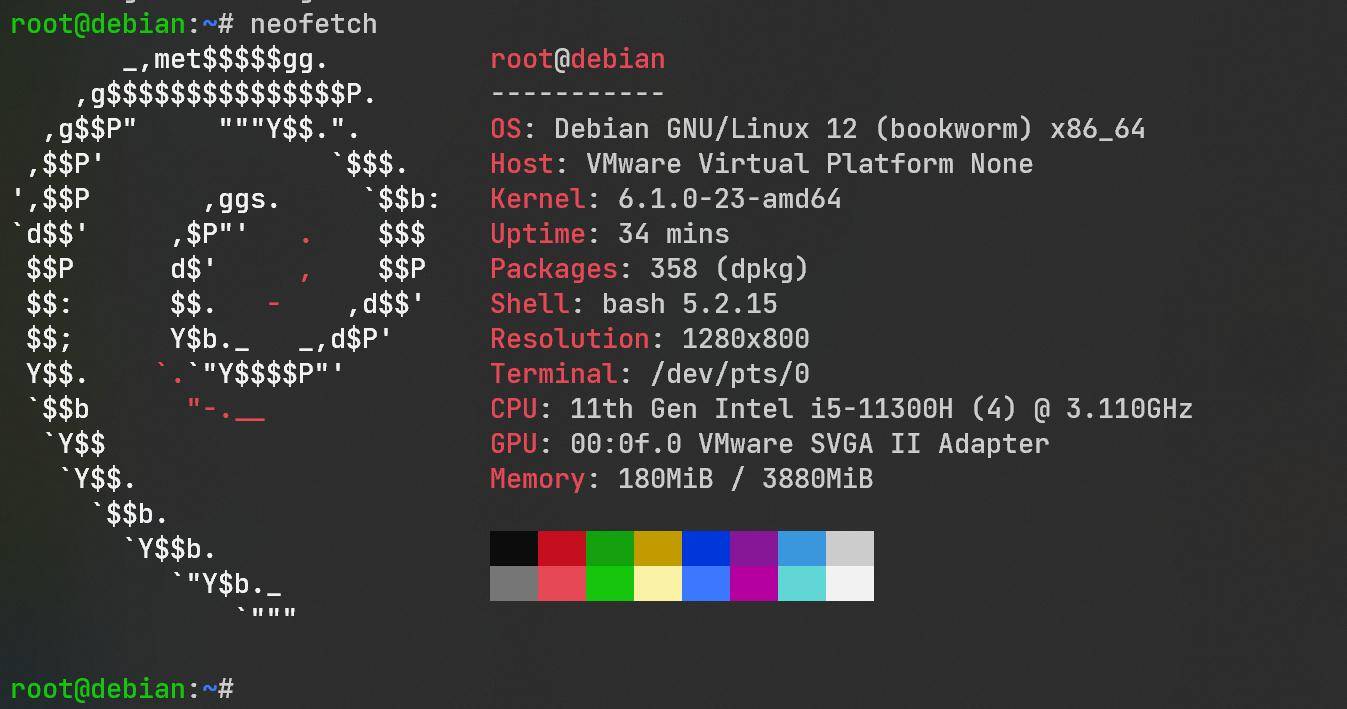
apt install tree neofetch htop wget -y
?!
Please download the virtual machine files yourself (VM17):
Tianyi Cloud Drive https://cloud.189.cn/web/share?code=nimMNzEnIzYv
Access code: bk0c