
Use FRP to Speed Up P2P Downloads
My home computer is behind a router’s NAT, so external peers can’t connect when I’m seeding or downloading BT torrents. I can only make outbound connections, and the number of peers stays in the single digits, so speeds never pick up. I happen to have an inexpensive VPS and have been wondering if I can use its public IP to make up for this shortcoming.
Background
The computer at home is behind the router’s NAT. When seeding or downloading BT content, external peers simply can’t connect to it—you can only initiate connections yourself, so the peer count stays in the single digits and speeds naturally suffer.
I happen to have a cheap VPS and had been wondering whether I could use its public IP to solve this limitation. A common approach online is to buy a commercial VPN with port forwarding, such as Proton VPN or PIA. But since I already have a VPS, why not set up something more flexible and controllable myself—frp?
GitHub: https://github.com/fatedier/frp
The idea: Reverse tunneling
The core concept, in a nutshell:
The computer at home initiates an outbound connection to establish a tunnel with the VPS. When someone on the outside connects to a port on the VPS, the VPS sends the traffic back home through the tunnel.
That’s exactly what frp does. It isn’t port forwarding at the router level in the traditional sense, but rather “relaying” traffic at the application level: the VPS (frps) receives and reads the data, then feeds it into the pre-established tunnel. The frpc at home receives it and forwards it unchanged to the local BT client. Throughout the process, the home router only sees that it “initiated a connection,” just like when browsing the web. There’s no need to open any ports on the router.
Configuration example
Server frps.toml (running on the VPS)
bindPort = 8888

auth.method = "token"
auth.token = "换成你自己的随机长字符串"

# 可选:控制通道加密
transport.tls.enable = true
Client frpc.toml (running on your home computer)
serverAddr = "你的VPS公网IP"
serverPort = 8888

auth.method = "token"
auth.token = "跟frps.toml里一样的字符串"

transport.tls.enable = true

# BT swarm里peer密集涌入时,预备的工作连接池不够用,
# 会报 "work connection pool is full, discarding"
# 按观察到的Peers+Seeds峰值来定,够用就好
transport.poolCount = 150

[[proxies]]
name = "bt-p2p"
type = "tcp"
localIP = "127.0.0.1"
localPort = 51413        # BT软件实际监听端口
remotePort = 51413        # VPS上对外暴露的端口
In your BT software, set the listening port to 51413, disable the random port option, and allow the corresponding port through your firewall/security group.
By the way: Use a proxy over an encrypted tunnel
If a direct connection from your local machine to the VPS is prone to QoS throttling, you can configure frpc to explicitly route traffic through your local proxy client instead of connecting directly:
transport.proxyURL = "socks5://127.0.0.1:7890"
This way, frp’s control channel passes through the local proxy before going out, blending in with normal encrypted traffic and making it harder to target specifically than frp’s exposed protocol fingerprint. Compared with letting the proxy software “automatically” take over all traffic in global mode, this explicit configuration gives you more control and is less likely to cause unexpected routing issues.
Inspecting Link Information
At first, there were only 4 Peers, so I suspected the port wasn’t reachable. Later, I saw a burst of the following in the frpc logs:
get a user connection [92.238.37.56:50923]
get a user connection [145.79.182.73:9210]
...
Different countries’ real external IPs actively connecting to you is the clearest evidence that the port is open in both directions—more “hardcore” than the built-in Test Port button in your software, because it shows real connection records from the server’s perspective.
If the Flags column in your BT client’s Peers list shows a I marker, it means the same thing: the other party initiated the connection. However, because the connection is forwarded through frp, the source shown locally will be 127.0.0.1 (since frpc initiates a new connection on your machine), not the other party’s actual IP. This is normal, not a bug. To see the real source, run the ss command on the VPS.
A brief detour: NAT type detection
I tried testing with dyebean.com, a NAT type detection site. In theory, after routing through frp, the setup should qualify as the least restrictive Full Cone NAT, since it uses a fixed port that any external address can connect to.
But the test couldn’t determine the type. The reason is that these sites typically work by having you connect to a port they specify, then checking whether they can connect back to you. frp only maps that one fixed port (for example, 51413), so the site can’t specify that port for its test, making accurate results impossible. This is a known limitation of this setup: port forwarding only makes the specific port you know about reachable; it doesn’t make the entire machine fully reachable from the public internet in the general sense. Change the port, and it won’t work either—you’ll need to add a separate [[proxies]] configuration.
Results
After the adjustments, the number of peers jumped from single digits to over two hundred (IPs that initiate connections appear as 127.0.0.1, and this IP is counted as one peer). Download speeds started at a few MiB/s, gradually climbed to over ten MiB/s, and even topped 20+ MiB/s at times.
Along the way, I also figured out one thing: BT is a reciprocal protocol. The choking algorithm prioritizes giving bandwidth to peers that “give generously” in return—if your upload performance is poor, your download speed will naturally be less consistent. Uploading a little more can actually make downloads more sustained. This “credit” only applies within the swarm for the current torrent. With public torrents, switching to another resource resets it; only private trackers accumulate it across torrents as an account’s share ratio.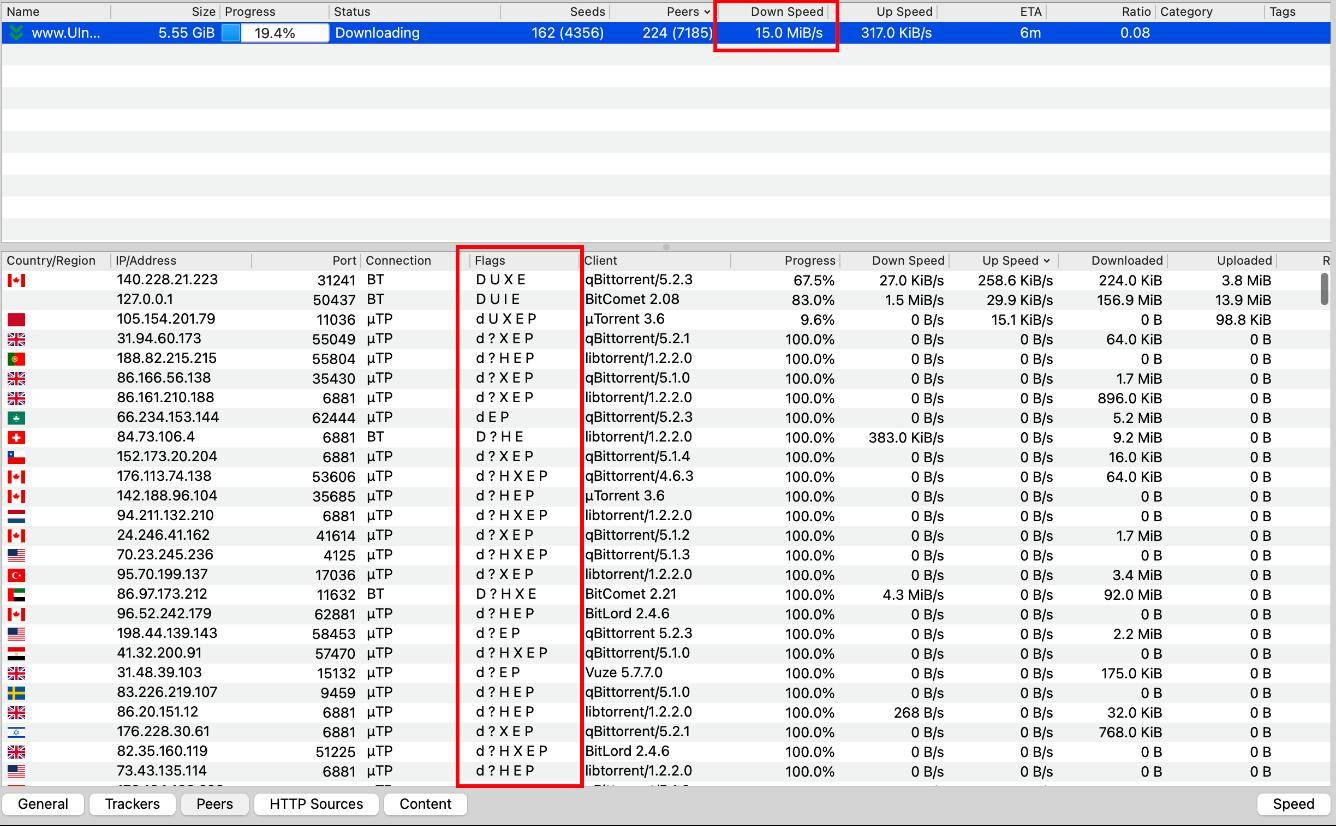
A few takeaways
The configuration itself isn’t complicated. The tricky part is understanding what each layer does—the difference between control and working connections, the purpose of the connection pool, and the order in which the proxy and tunnel operate. Once you understand “who is talking to whom,” troubleshooting becomes much more straightforward.